
Even with fast fiber internet, many people still struggle with weak WiFi, dead zones, or slow speeds in certain rooms. Walls, distance, old devices, and furniture can affect how well your wireless connection performs.
Your fiber connection brings high-speed internet to your home, and then your WiFi router is what distributes that connection wirelessly to your devices. Once the internet leaves the router and travels through your home as a radio signal, many different factors can affect how strong or weak it becomes. Once you understand the cause of weak WiFi, the fixes become much clearer.
What WiFi Signal Strength Really Means
WiFi works by sending out radio waves from the router. These waves spread outward and lose strength over distance. When people say they have a “weak signal,” it usually means their device is too far from the router or the signal is being blocked by walls, ceilings, appliances, or other obstacles.
A strong WiFi signal does not guarantee maximum speed, but it is an indicator that the connection between your device and the router is clear and steady. A weak signal usually leads to slow loading times and buffering videos, difficulty connecting smart home devices, poor video call quality, or dropped connections altogether.
Your home may receive fast speeds, but if your WiFi signal is weakened as it reaches your device, you’re not getting the full experience for which you are paying.
Your Home May Weaken Your Signal
Your WiFi signal loses strength as it tries to pass through certain common building and household materials. Some materials absorb the signal, some reflect it, and others scatter it:
- Wood or drywall: Low impact
- Brick or stone: Medium impact
- Concrete: High impact
- Metal pipes or ductwork: High impact
- Metal surfaces: Very high impact
- Mirrors or reflective surfaces: Can bounce the signal away
This is why some homes, especially older homes with thicker walls or narrower layouts, have inconsistent coverage. Furniture, large appliances, or a closed door can make a noticeable difference.
Distance also matters. Even a strong router has limits. A WiFi signal is often strongest within 25 to 30 feet. After that, the signal drops quickly and exponentially, especially if it has to pass through walls.
Interference From Other Devices
WiFi shares airspace with many everyday devices. Some use similar frequencies, which can clutter the wireless environment and make your signal weak:
- Baby monitors
- Older Bluetooth devices
- Garage door openers
- Microwaves
- Cordless phones
- Smart appliances
- Old electrical wiring and systems: Electronics and wiring that do not use WiFi can still create noise in the same frequency range.
Connect with Good Quality Devices
Many customers assume their internet network is slow when the real issue is the device connected to it making the WiFi signal weak. Older phones, tablets, laptops, security cameras, and smart home gadgets often have weaker wireless chips and slower network capabilities. These devices cannot fully use the speeds delivered by fiber internet.
If you’re running a speed test on a five-year-old laptop, or even a cheaper laptop with a low-quality wireless chip, you’ll likely not be able to experience the speeds other devices can when connected to the same network at the same location in the home.
Older devices may also disconnect easily, causing delays for other devices on your network. Upgrading a few key devices can make your WiFi stronger when nothing else changes.
Understanding Multi-Device Households
Homes today rely on more wireless devices than ever. A single family may have multiple:
- Phones and watches
- Smart TVs
- Tablets and laptops
- Video doorbells
- Security systems
- Smart thermostats
- Gaming systems
- Smart plugs and bulbs
Even small households may run 10 to 20 connected devices without realizing it. Older routers that don’t offer “multibands” (meaning both 2.4GHz and 5GHz bands) often struggle to keep up because every device shares the same WiFi signal. Newer routers are designed to handle many devices at once. They use updated WiFi technology that helps each device communicate with the router more efficiently. This can make a big difference in homes with many smart devices.
Ways to Improve Your Home WiFi Performanc
After understanding what affects WiFi signal strength, the next step is knowing what you can do about it. Better placement, newer equipment, and sometimes additional devices can help extend your signal so you can enjoy the speed for which you are paying. Below are five solutions that work well in most situations.
Use Modern WiFi Equipment
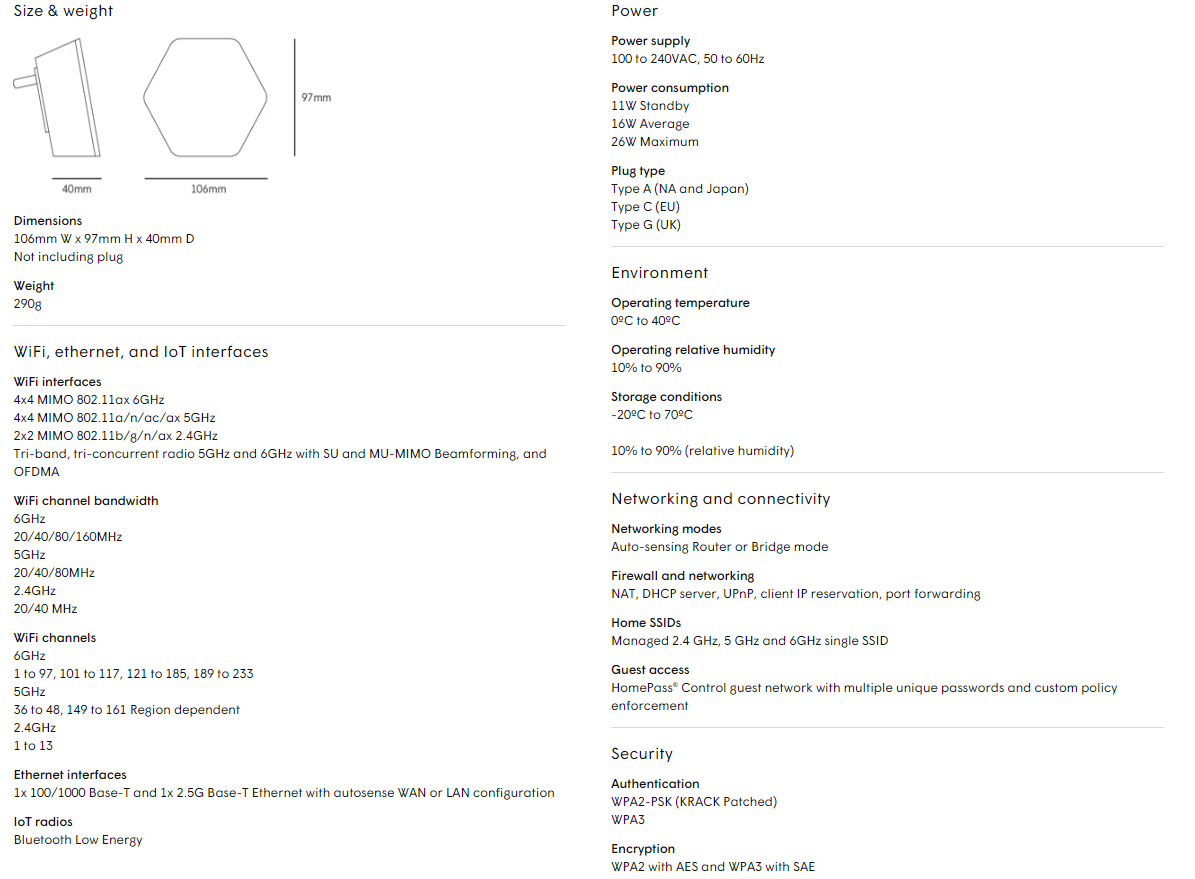
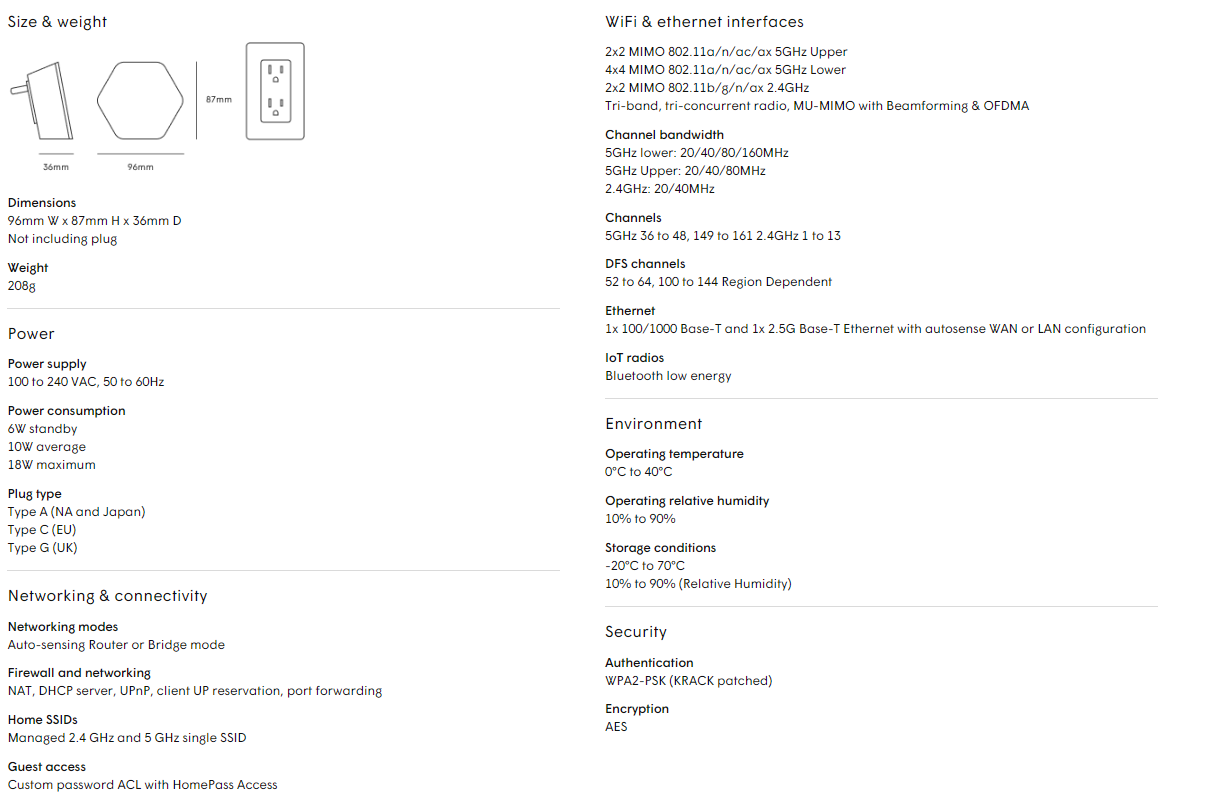
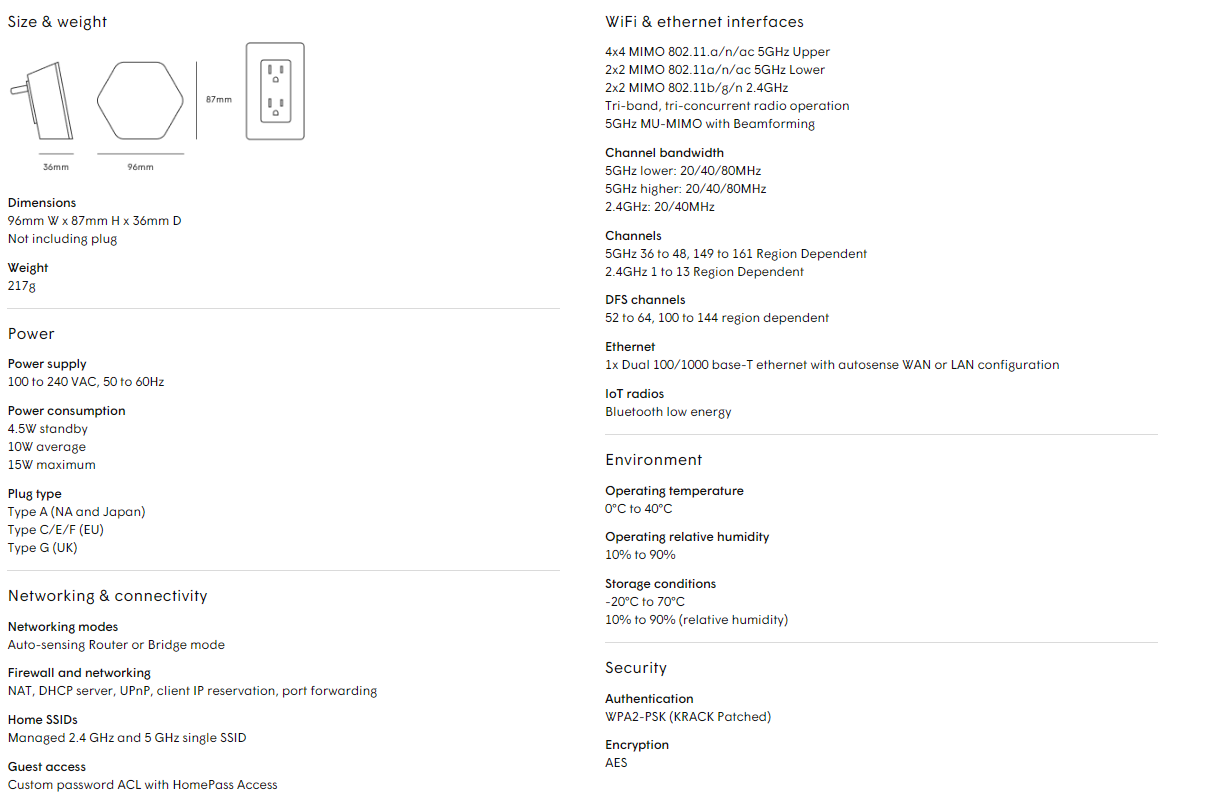
If your router is older than four or five years, it may not support current WiFi technology. Newer routers provide stronger, more reliable coverage, and can handle many devices at once. CITYNET Fiber Internet customers receive a top-not router for free as part of their service. Not only do you get great performance from your CITYNET router, but you also get great customer support. Our Support Team can remotely identify issues and work to resolve them.
Improve Router Placement
Small changes can significantly strengthen WiFi signal strength in nearby rooms. Place the router in a central part of the house, off the floor, away from metal appliances, and outside of cabinets, closets, or closed rooms.
Reduce Interference
Move the router away from:
- Microwaves
- Large mirrors
- Cordless phones
- Baby monitors
- Cluttered shelves – A clear space helps the signal travel more freely
Know What Devices Are Slowing You Down
Check for older or low-quality devices that may be dragging down the network.
Consider a Mesh WiFi System
A mesh WiFi system uses multiple small access points to cover your whole home. This is ideal for:
- Large homes
- Multi-story homes
- Homes with thick walls
- Homes with far-apart rooms
Mesh WiFi provides seamless coverage so you can move throughout your home without losing connection.
CITYNET offers fast fiber internet with high-performance WiFi routers included for free with any of our plans. CITYNET customers have access to our free WiFi management app (on most plans) for maximum control and performance. Plus, CITYNET customers also have access to around-the-clock support from our expert support team to answer any questions or help diagnose any WiFi network issues. Not a CITNET Fiber Internet customer yet? GET STARTED TODAY!